
How to Save Markdown as PDF Without Losing Formatting
Learn how to save Markdown as PDF while preserving headings, lists, tables, code, images, and links with a browser converter, VS Code, or Pandoc.

Saving Markdown as PDF is easy. Keeping the document readable after export is the part that deserves attention. A PDF has fixed pages, while Markdown only describes structure, so headings, tables, code blocks, images, and page breaks can shift when the renderer changes.
The most reliable approach is to render the Markdown first, inspect the preview, and export that rendered version as a PDF. For a one-off document, a browser converter is usually the quickest option. VS Code and Pandoc are better when the conversion needs to stay inside an editor or become part of a repeatable workflow.
The quickest way to save Markdown as PDF
Use this workflow when you need a clean PDF without installing anything:
- Open the Markdown to PDF converter.
- Upload a
.mdor.markdownfile, or paste the Markdown directly. - Check the live preview for headings, lists, tables, code blocks, images, and links.
- Correct the Markdown or adjust the styling if something does not look right.
- Download the finished PDF and inspect the first and last pages.
The preview is the important step. It shows how the Markdown has been interpreted before the layout is locked into a fixed-page document.
Why Markdown formatting changes in a PDF
Markdown is not a page-layout format. It identifies a title, a list, a table, or a code block, but it does not normally define paper size, margins, fonts, or page breaks. The tool that renders the Markdown decides how those elements should look.
That is why the same .md file can look slightly different in GitHub, Obsidian, VS Code, a browser preview, and a PDF. Each application may use a different Markdown parser, stylesheet, font set, or image-loading rule.
The most common causes of formatting changes are:
- Heading levels that are out of order
- Lists with inconsistent indentation
- Wide tables that do not fit on a portrait page
- Code blocks without fenced backticks
- Images that are too large or cannot be loaded
- Manual line breaks used instead of proper paragraphs
- Custom Markdown features that the PDF renderer does not support
Clean source Markdown does not guarantee a perfect PDF, but it removes most avoidable problems.
Method 1: Use an online Markdown to PDF converter
A browser converter is the practical choice for reports, meeting notes, technical documentation, assignments, and other one-off files.
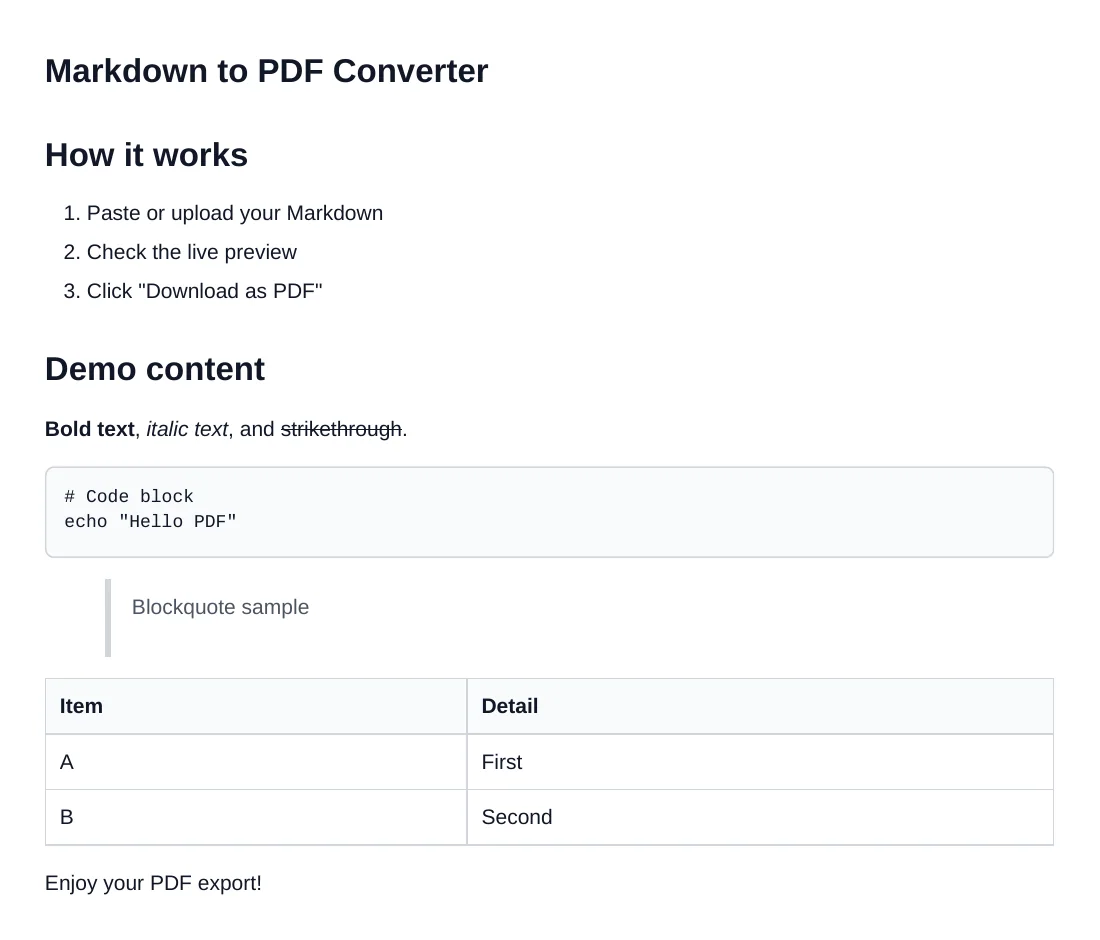
Start by uploading the Markdown file or pasting its contents into the converter. Then read through the preview as if it were the finished document. Do not only check the opening paragraph. Look at the widest table, the longest code block, the first image, and any nested list.
If the preview looks correct, export the PDF. This method is faster than rebuilding the document in a word processor because the renderer already understands Markdown headings, lists, links, tables, images, and fenced code blocks.
Use the browser method when:
- You want a PDF immediately
- You need to see the rendered layout before export
- The document contains a mix of text, tables, images, and code
- You do not need a scripted batch process
- A teammate should be able to repeat the steps without command-line tools
Choose PDF settings before export
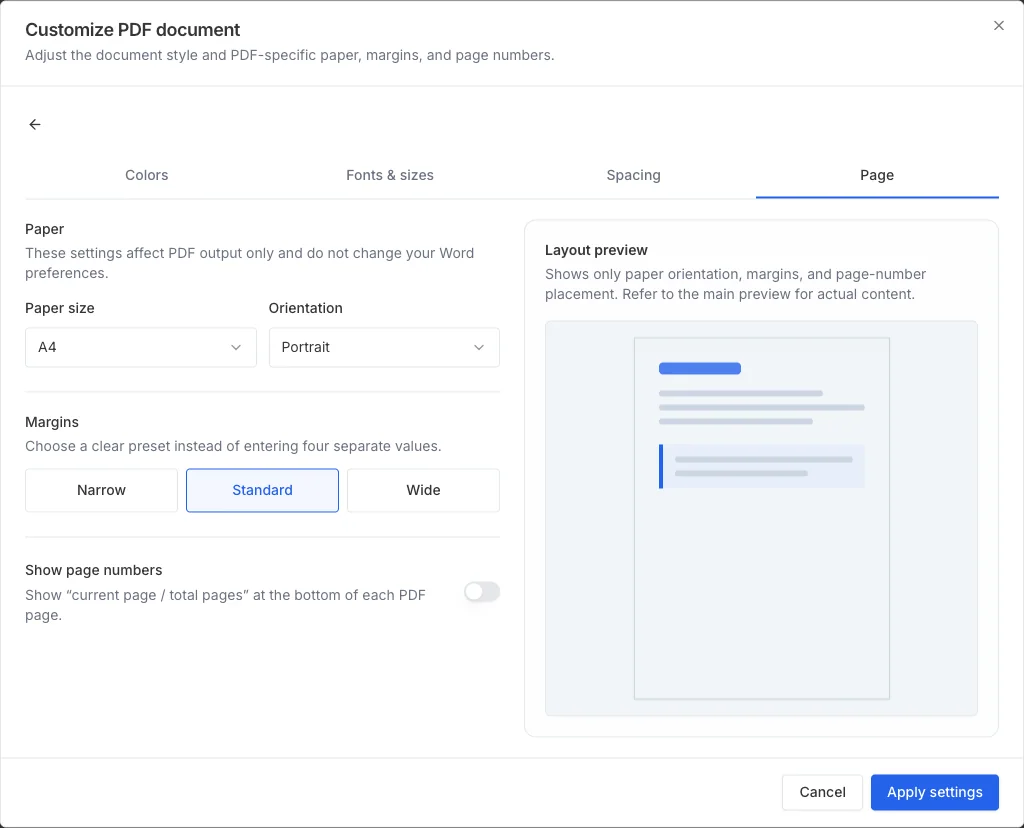
The Markdown to PDF converter lets you control the page layout and document appearance before downloading the file. Open the PDF customization panel after the preview is correct, then choose settings for the way the PDF will be read or printed:
- A4 or Letter paper: use A4 for most international documents and Letter when that is the expected office or print format.
- Portrait or landscape: portrait suits text-heavy documents; landscape gives wide tables and code more horizontal space.
- Narrow, standard, or wide margins: narrow margins fit more content on each page, while wide margins leave more room for notes or binding.
- Optional page numbers: add the current page and total page count to the footer of every page.
- Document styles: select a preset or customize heading, body, and code fonts, font sizes, line spacing, paragraph spacing, and colors.
Change one group of settings at a time and recheck the preview. For example, try landscape orientation before reducing a table's text size, and try a smaller code font before editing a valid code sample simply to make it fit.
Method 2: Save Markdown as PDF in VS Code
VS Code is useful when the Markdown file already belongs to a code or documentation project. The editor includes a Markdown preview, but PDF export is commonly added with an extension such as Markdown PDF.
A typical workflow is:
- Open the
.mdfile in VS Code. - Open the Markdown preview and fix any source-formatting problems.
- Install a Markdown-to-PDF extension from the Visual Studio Marketplace.
- Open the Command Palette.
- Run the extension's PDF export command.
- Open the generated PDF and check page breaks, images, tables, and code blocks.
This route is convenient when you want export settings to live alongside a project. The tradeoff is setup: extension behavior, styles, and available fonts can vary between machines, so a PDF that looks right on one computer should still be checked on another.
Method 3: Convert Markdown to PDF with Pandoc
Pandoc is the stronger option for automated documentation, repeatable builds, academic writing, citations, templates, and batches of files.
The basic command is:
pandoc document.md -o document.pdf
Pandoc needs a compatible PDF engine for direct PDF output. If the command reports that a PDF engine is missing, install one supported by your setup or select an available engine with Pandoc's --pdf-engine option.
Pandoc is worth the extra setup when:
- The same document is exported repeatedly
- Many Markdown files need to become PDFs
- The PDF needs a controlled template
- Citations, metadata, or a generated table of contents are required
- Conversion belongs in a script or CI pipeline
For a single note or report, this can be more tooling than the job needs. For a maintained documentation system, it is often the most predictable choice.
How to keep Markdown formatting in the PDF
Before exporting, inspect the rendered document rather than assuming valid Markdown will produce a good page layout.
Keep the heading hierarchy simple
Use one # heading for the document title, then move through ## and ### levels in order. Skipping from # to #### may still render, but it weakens the document outline and can create inconsistent spacing.
Use consistent list indentation
Choose spaces rather than mixing spaces and tabs. Nested bullets and numbered steps are easier to preserve when every level uses the same indentation pattern.
Keep tables narrow
A table that fits across a desktop preview may overflow a portrait PDF page. Shorten long cell content, remove unnecessary columns, or use landscape output when the renderer supports it.
Fence every code block
Wrap code with triple backticks and add a language identifier when useful:
```javascript
const output = "document.pdf";
```
Fenced blocks preserve indentation more reliably than manual spaces and make code easier to distinguish from normal paragraphs.
Check image paths and dimensions
Use images that the renderer can access, and avoid inserting an image at its full camera or screenshot resolution. Large images should scale down to the page width without pushing surrounding content into awkward positions.
Review links after export
Markdown links usually remain clickable, but verify the links that matter. Relative links may work inside a documentation site and fail in a standalone PDF, so use complete URLs for external references.
Verify what the PDF preserves
Do not judge an export only by its first page. Use at least one example of every important Markdown element in the document, then compare the downloaded PDF with the live preview.
| Markdown element | Expected PDF result | What to verify |
|---|---|---|
| Headings | Clear visual levels for the title and subsections | Levels remain distinct and a heading is not stranded at the bottom of a page |
| Bulleted and numbered lists | Markers, numbering, and nested indentation remain visible | Nested items stay under the correct parent and numbering is continuous |
| Tables | Rows, columns, borders, and header cells remain readable | The widest row fits the page and no column is clipped |
| Fenced code blocks | Monospaced text stays inside a separate code area | Indentation remains intact and long lines wrap without hiding content |
| Images | Supported images appear at a readable size and keep their proportions | Each image loads, is not stretched, and does not force an unwanted blank page |
| Links | Link text remains readable and web links remain clickable | Important external links open the intended complete URL |
This check distinguishes a source problem from a page-layout problem. If an element is already wrong in the preview, correct the Markdown or image source first. If it looks right in the preview but fails only in the PDF, adjust the PDF layout or document style.
How to print Markdown to PDF
If a Markdown app provides a reliable rendered preview but no export button, the system print dialog can be a useful fallback:
- Open the rendered Markdown preview.
- Choose Print in the application or browser.
- Select Save as PDF as the destination.
- Check paper size, margins, scale, headers, and footers.
- Save the file and inspect the result.
Printing works best for simple documents. Browser headers, clipped tables, syntax-highlighting backgrounds, and awkward page breaks are common signs that a dedicated Markdown-to-PDF exporter would produce a cleaner result.
Which method should you choose?
Browser converter
Best for one-off documents and quick sharing. It provides a live preview with minimal setup, but the workflow is manual.
VS Code extension
Best for project documentation. Export stays inside the editor, but extension setup and output can vary between machines.
Pandoc
Best for automated or repeatable publishing. It supports templates and scripting, but requires command-line and PDF-engine setup.
Print to PDF
Best for simple rendered notes. It is available in many applications, but gives you less control over the final page layout.
Choose the simplest method that gives you a preview and a repeatable result. The preview matters more than the number of export settings.
Common Markdown to PDF problems
Fix a table that is clipped
First switch the PDF to landscape orientation and use narrow margins. If the table still does not fit, shorten long column headings, remove nonessential columns, or split one wide table into two focused tables. Check the widest row in both the preview and the downloaded PDF rather than testing only the header.
Fix code that wraps badly
Confirm that the source uses fenced code blocks, then choose a smaller code font in the document style settings. Long URLs, hashes, and commands without natural break points may still need to be divided into shorter lines. Do not remove indentation or code fences just to save horizontal space, because that can damage the structure readers need.
Fix images that are missing
Check whether the image appears in the live preview before exporting. A relative path that works inside a local repository may not be available to a browser converter, so replace it with an image URL the converter can load. Also verify that the URL uses HTTPS and does not require a login or temporary session.
Fix unexpected page breaks
Look immediately before the blank space or extra page for an oversized image, a wide table, repeated blank lines, or explicit HTML page-break styling. Then try standard or narrow margins, smaller heading or body text, and tighter paragraph spacing. Export again and inspect the pages around the original break; changing unrelated content elsewhere makes the cause harder to identify.
For flattened lists, correct the source indentation and leave blank lines around the list. For missing characters, choose a heading and body font that contains the required language or symbols. If a link is not clickable, use a complete Markdown link rather than plain text or a repository-relative path.
Fix these issues in the Markdown or rendering styles before repeatedly editing the PDF. A PDF is the delivery format; the Markdown should remain the source of truth.
Frequently asked questions
Can I save Markdown as PDF online?
Yes. Upload or paste the Markdown into an online converter, check the rendered preview, and download the PDF. Use a preview-first tool when preserving tables, code blocks, images, and lists matters.
How do I save Markdown as PDF in VS Code?
Open the Markdown file, inspect VS Code's preview, install a PDF export extension, and run its export command from the Command Palette. Check the generated PDF because extension styles and fonts can differ from the built-in preview.
Why does my PDF look different from the Markdown preview?
The preview and exporter may use different styles, fonts, page widths, or Markdown processors. Export from the same preview environment when possible, and keep the source structure simple.
Can a Markdown PDF keep clickable links?
Most dedicated converters and PDF engines preserve normal Markdown links. Complete external URLs are more reliable than relative links once the PDF leaves the original project.
Summary
To save Markdown as PDF without losing formatting, render the Markdown first, inspect the full preview, and export from the same environment. A browser converter is the fastest route for a normal document, VS Code fits editor-based workflows, and Pandoc is better for automation and templates.
Whichever method you choose, clean headings, consistent lists, narrow tables, fenced code blocks, accessible images, and a final PDF check will prevent most formatting problems.
Keep reading


