
How to Convert a Markdown File to Word
A field-tested workflow for turning a .md file into a clean DOCX, including source cleanup, preview checks, export tips, and Word review steps.

To convert a Markdown file to Word, upload the .md or .markdown file to the Markdown to Word Converter, review the live preview, download the DOCX, and open it in Word for a final check. The exported document stays editable, so headings, lists, tables, links, images, and code can still be reviewed and updated in Word.
How to Convert a Markdown File to Word in 5 Steps
- Clean up the Markdown file.
- Upload it to the converter.
- Check headings, lists, tables, links, images, and code in the preview.
- Download the editable DOCX.
- Open the DOCX in Word and perform one final review.
For a short, well-structured file, those five steps may be all you need. Longer documents are worth checking more carefully before and after export because small source issues can become obvious once the content reaches Word.
Prepare the Markdown File for a Clean Word Export
Before opening a converter, skim the Markdown file for structural problems. The source does not need decorative formatting, but its headings, lists, tables, links, images, and code blocks should be clear enough for a converter to interpret consistently.
Markdown works best when it describes structure: headings, paragraphs, lists, tables, links, images, code blocks. The Markdown Guide basic syntax is still a good reference because it keeps the rules plain: use # for headings, blank lines between paragraphs, consistent list markers, and readable inline formatting.
For a Word export, these are the checks that matter most:
- Use one
#title, then##and###sections in order. - Put a blank line before and after headings, lists, tables, and code blocks.
- Keep list indentation consistent.
- Use fenced code blocks with triple backticks.
- Use full links, such as
https://example.com, instead of half-written URLs. - Keep tables simple enough to fit on a Word page.
- If the Markdown includes images, make sure the image links still work.
Here is a source sample that was converted into the Word output shown below.
Before: Markdown Source
## Completed Work

- Product requirements approved
  - Documentation prepared
  - API reference reviewed

1. Export the draft
2. Review the DOCX
3. Share it with the team

## Editable Table

| Deliverable | Owner | Status |
| --- | --- | --- |
| Product brief | Product | Ready |
| API reference | Engineering | In review |
| Launch notes | Marketing | Draft |
After: Editable Word Output
This Word output was generated from the Markdown sample above. The bullet hierarchy, numbered steps, and table remain structured and editable in the DOCX rather than becoming a screenshot or flattened text.
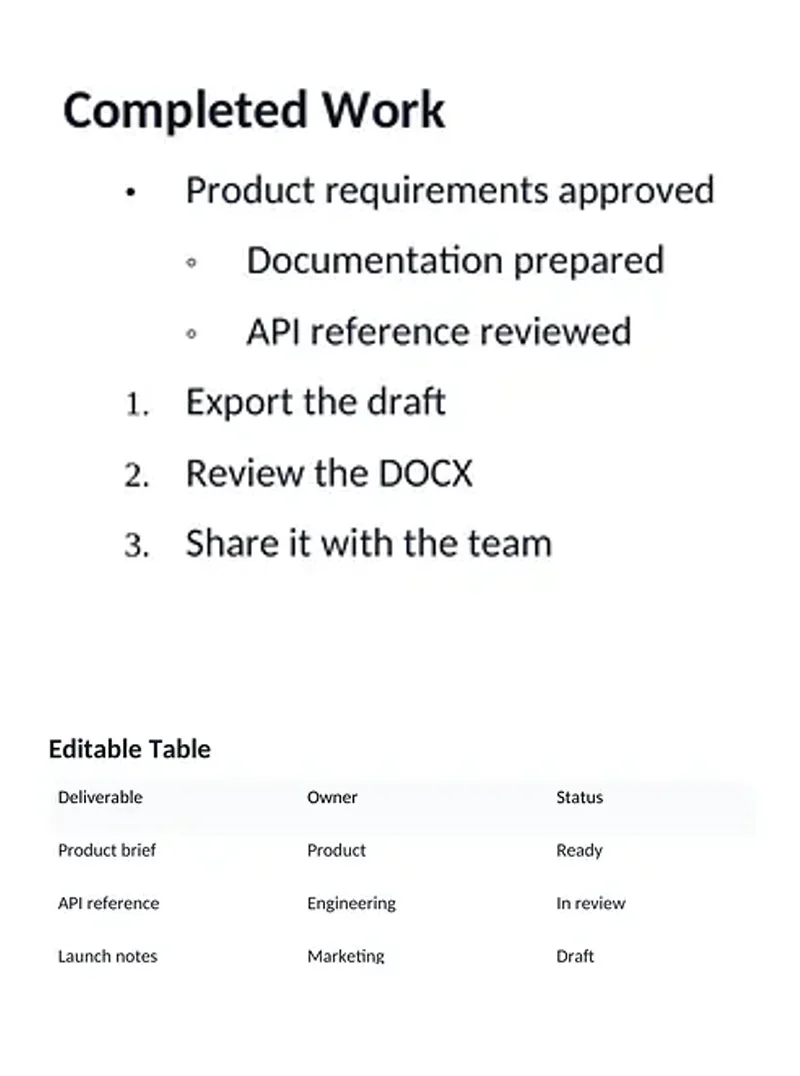
The source uses consistent indentation, matched table columns, blank lines between blocks, and headings in order. That predictable structure is what helps the Word file come out clean.
Upload the .md file instead of copy-pasting when you can
Open the Markdown to Word Converter. If the content already exists as a .md or .markdown file, upload the file directly.
Uploading has two advantages:
- The original filename stays attached to the workflow, which helps when you are converting specs, chapters, policies, or reports.
- You avoid accidental paste problems, such as missing backticks, copied line numbers, or extra spaces from a web page.
Pasting still works, and it is useful when the Markdown is sitting in your clipboard. But if you have a real file, start with the file. It gives you one less thing to clean up.
Check the preview like you would check a print proof
The preview is the step people skip, and it is usually where the mistakes are easiest to catch.
Our converter shows a live preview before you download the Word document. Use it. Look at the page as a reader, not as the person who wrote the Markdown.

I normally check these areas:
- Title and headings: does the document hierarchy make sense?
- Lists: are nested bullets and numbered steps aligned correctly?
- Tables: are all columns present, and is any row too wide?
- Code blocks: is code readable as code instead of normal text?
- Links: do important links appear as links?
- Images: are images close to the section they explain?
This is also where Markdown variants matter. Many tools support extended Markdown features such as tables, fenced code blocks, and footnotes, but support is not identical everywhere. The Markdown Guide extended syntax points out that extended elements depend on the Markdown processor. So if your file came from GitHub, Notion, Obsidian, a static site generator, or an AI tool, preview it before assuming every detail will survive.
Download the DOCX and open it in Word
Once the preview looks right, download the Word document. The output is a DOCX file, so it can be opened in Microsoft Word, Google Docs, LibreOffice, and most Word-compatible editors.
After opening the DOCX, do a short final pass:
- Turn on the navigation pane and check whether headings form a clean outline.
- Click a few important links.
- Scan the first table and the widest table.
- Check code blocks if the document is technical.
- Look at the first page break if the document will be printed or submitted.
- Save the file with a clear name, such as
project-report-final.docx.
Do not spend this pass redesigning the whole document. The goal is to catch conversion issues, not start editing the content from scratch.
What should survive the conversion?
A good Markdown to Word conversion should keep the document editable. That means Word should receive real headings, lists, tables, links, and paragraphs rather than a screenshot or a flat block of text.
Here is what I expect from a normal Markdown file:
#,##,###headings should become Word-style section headings.- Bold and italic text should stay editable as emphasis.
- Bullet and numbered lists should become editable Word lists.
- Tables should become Word tables with visible cells.
- Links should stay clickable.
- Images should sit in the document flow near the relevant section.
- Fenced code blocks should become readable monospace code sections.
- Blockquotes should stay visually separated from normal paragraphs.
The part to be realistic about is layout. Even mature tools like Pandoc explain that conversion preserves structural elements better than every last formatting detail, and complex tables may not map perfectly between formats. That is true for almost every converter. Markdown is not a page layout format; Word is much closer to one.
So aim for a clean, editable DOCX first. Then use Word for the last-mile layout decisions.
Common problems and quick fixes
Most bad exports start with small Markdown problems. Here are the ones I see most often.
- Heading appears as plain text: usually caused by a missing space after
#. Use## Section title, not##Section title. - List nesting looks wrong: usually caused by mixed tabs and spaces. Use the same indentation pattern throughout.
- Table breaks or loses columns: usually caused by uneven pipe columns. Make every table row use the same column count.
- Code becomes normal paragraph text: usually caused by a missing fenced block. Wrap code with triple backticks.
- Link is not clickable: usually caused by an incomplete URL or Markdown link. Use
[label](https://example.com). - Extra spacing appears: usually caused by too many manual line breaks. Use blank lines between blocks, not random hard breaks.
If the document is long, test one section first. Convert the introduction, one table, one code block, and one image. If those look good, the rest of the document is usually safe.
When a browser converter is better than a command-line tool
Pandoc is powerful, and I would still reach for it when I need repeatable batch conversion, custom templates, citations, or scripted documentation builds.
For everyday work, though, a browser converter is often faster:
- You do not need to install anything.
- You can preview the document before export.
- You can fix small Markdown issues immediately.
- You can hand the process to a teammate who does not use the command line.
- On our site, normal DOCX conversion runs locally in the browser, so drafts are not uploaded just to make a Word file.
That last point matters for internal notes, class reports, client drafts, and technical documents that should not casually pass through another server.
Summary
To convert a Markdown file to Word, upload the .md or .markdown file, review the live preview, and download the DOCX. The cleanest results come from clean source Markdown: ordered headings, consistent lists, simple tables, fenced code blocks, and complete links.
If the Word file needs comments, tracked changes, approvals, or printing, treat the DOCX as the handoff format. Keep Markdown for writing; use Word for collaboration and final review.
Keep reading


