

How to Fix Missing Images When Converting Markdown to PDF
Converting Markdown to PDF with images? Trace a missing picture to its local path, GitHub link, or browser preview and compare two real PDF exports.

When you convert Markdown to PDF with images, the words left behind by a missing picture can tell you which file to look for. Our expense report showed two blue bars when we opened it from the project folder. After we uploaded the Markdown file on its own, the PDF showed a broken image icon and Spending by category. Those three words came from the chart’s alt text.
Check where the picture first disappears. Open the original document, the converter preview, and the downloaded PDF in that order. We used the same expense report to test all three stages. You can download the source files and follow along with the actual chart.
Where does the image disappear?
- Missing in the original project
- Follow the path from the folder containing the Markdown file. Check the filename, extension, capitalization, and leading
!in the image syntax. - Visible in your project, missing in the converter preview
- Check which files the converter received. Uploading a single Markdown file can leave its image folder behind.
- Visible in the converter preview, missing in the downloaded PDF
- Check whether the image address works outside that browser tab or signed-in session. Then export again and open the new PDF.
A reader on Super User described seeing images in VS Code and only alt text in the finished PDF. That leaves one useful question: did the converter’s own preview ever show the image? In our tests, the second and third rows above produced almost identical broken PDFs, but the previews looked different.
How to convert MD to PDF with images in a local folder
Here is the image line from the sample. The first pair of brackets describes the chart. The parentheses tell the renderer where to find it.

Unzip the sample and you’ll find README.md beside an images folder containing spending.webp. The dot in ./images/ means “start in this document’s folder.” We rendered the Markdown to HTML in that folder, opened it in Chrome, and printed it to PDF. Both bars appeared. To try that local route, open the included expense-review.html with the folder still intact and choose Print → Save as PDF.
Next, we uploaded just README.md to the Markdown to PDF converter. The preview showed the alt text, and so did the download. The file picker had received the reference to the chart; the chart itself was still on our computer.
If the file came from Obsidian, open the note as plain text and look at one missing picture. An entry such as ![[spending.webp]] tells Obsidian to find an attachment in your vault. If the converter expects standard Markdown, find the actual attachment, copy it into an images folder beside the note, and use the image line above. Check it in a preview that can read that folder. For a converter that accepts only the note, choose one of the two options below. Obsidian’s guide to embedded files
For an image you can share publicly, replace the path inside the parentheses with the full address of the image. This is the exact line that restored the chart in our download:
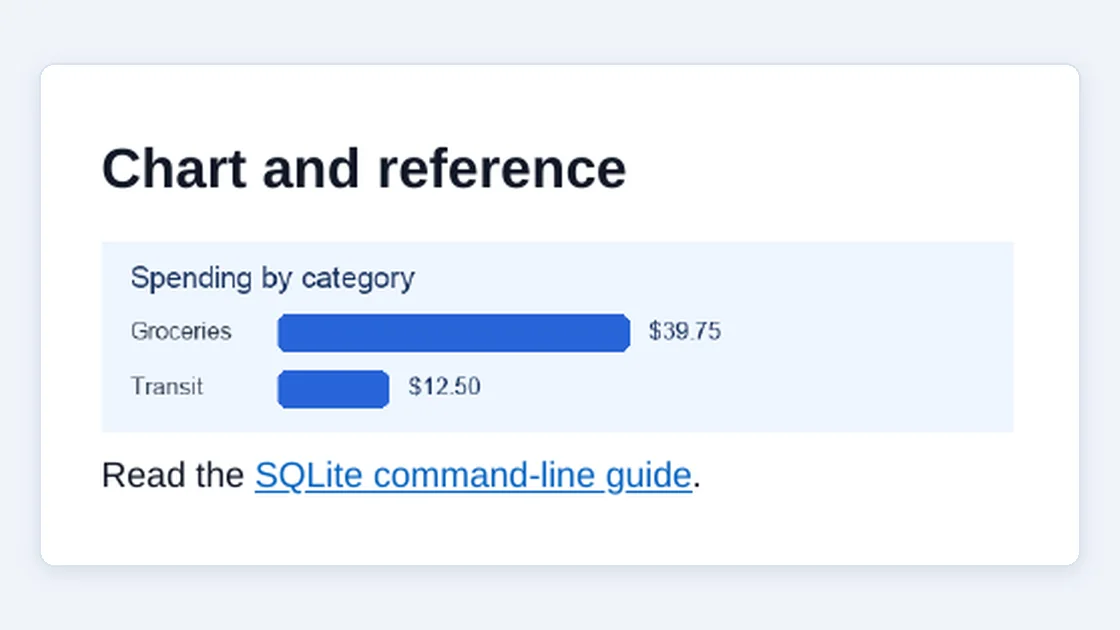
For a document that needs to stay on your device, keep the Markdown and images together and export locally. If you can share the document with a converter but don’t want to host the image separately, a third option worked in our test: embedded-image.md in the sample carries the WebP bytes inside the image reference as a data URL. It exported with both bars intact. Anyone receiving that Markdown file also receives the image.
How to fix GitHub and private image links
A GitHub file page can show you a picture while its URL still points to an HTML page. We exported the same public Markdown logo twice, changing only the address. You can open the two addresses to see the difference:
- GitHub file page — the address contains
/blob/. Used as the image source, it produced a broken image in both our preview and our PDF. - Raw PNG — this address returned the image itself. The preview and the exported PDF both showed the Markdown logo.
For your own public README, open the image file on GitHub, choose the raw file view, and copy the resulting address into the Markdown image reference. Open that address in a private browser window before converting. Can you see the picture on its own, without the repository interface or a sign-in prompt? GitHub’s raw-file instructions
Private images have a different constraint. We checked this separately with the same spending chart on a local test server that required a session cookie. In the authorized browser session, Chrome loaded the chart and printed both bars. In a fresh session, the very same image address returned HTTP 401 and the printout showed alt text. If your company wiki or private repository behaves this way, keep its access settings and use an approved local copy for export. Pasting a login token into the Markdown would share that credential with anyone who gets the source file.
What if the preview shows the image but the PDF doesn’t?
We reproduced this with a temporary blob: URL. Chrome created the address for the public spending chart inside the converter tab. The live preview showed both bars and their dollar amounts. We clicked Download as PDF in that same tab. The downloaded page contained the report heading and source note, with only alt text where the chart had been.
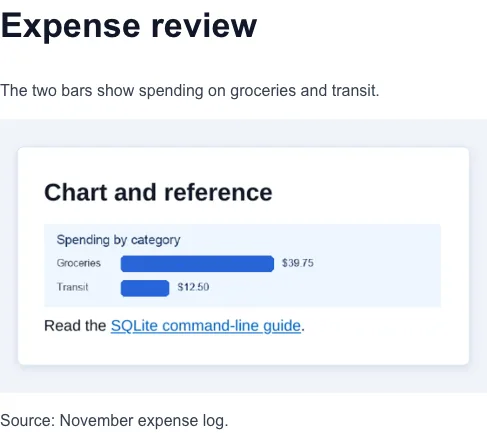
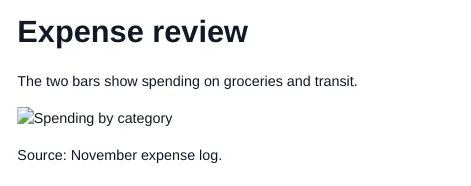
A blob URL points to data held by its creating browser environment. If your editor pasted a reference beginning with blob:, go back to the original image file. In our test, both the public image address and the self-contained data URL survived export. If your document has several missing images, change just one reference first, download a fresh PDF, and check that image before updating the others. How blob URLs work
Compare the PDFs before and after the fix
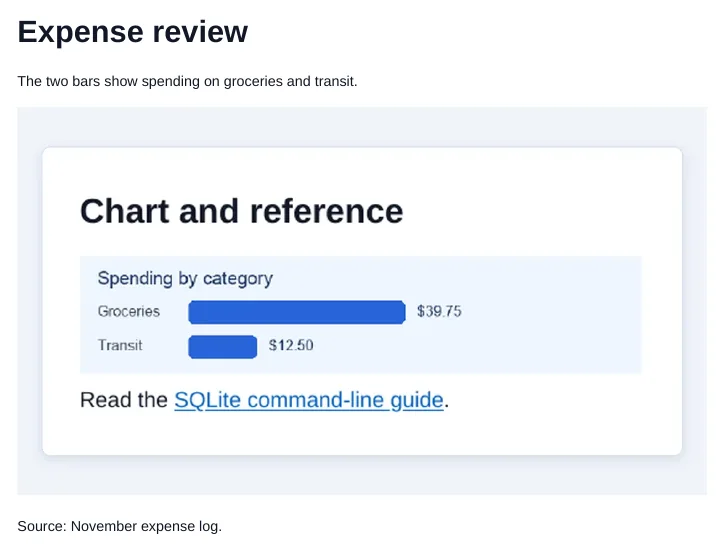
To check whether your converter can export Markdown to PDF with images, look for a detail that appears only inside the picture. In the two one-page PDFs below, that detail is the bar labeled Groceries $39.75. The first PDF shows the missing-image marker. The second shows the groceries bar and Transit $12.50. The report text, chart file, and default export settings were the same. Only the image reference changed.
- Open the PDF with the missing chart — exported from
README.mdwith the relative path. - Open the PDF with the restored chart — exported from
public-image.mdwith the public WebP address. - Download the Markdown, chart, and local print example (ZIP) — unpack the folder before opening either local example.
We ran the converter checks in Chrome on macOS on November 20, 2026, and opened the downloaded files to inspect the results. For an image that is present but gets clipped at the page edge, see the PDF formatting guide for page size, orientation, and margin settings.
Keep reading


