

How to Convert Markdown to PDF with Pandoc
Run the Pandoc Markdown to PDF command on a sample file, fix the “pdflatex not found” error, and compare your export with the finished PDF.

The basic Pandoc Markdown to PDF command is pandoc project-handoff.md -o project-handoff.pdf. Run it in the folder containing your Markdown file. If your PDF engine is installed, the finished file appears beside the source. On our Mac, the command returned pdflatex not found even though pandoc --version worked. Switching to Tectonic let us export the same document.
The example is a one-page handoff for a search release. A support lead needs to find the person who owns the rollout, copy a deployment command, and open the linked documentation. You can try those three things in the finished file. Download the sample Markdown or open the PDF we exported.
Run the Pandoc MD to PDF command
Save project-handoff.md in a folder you can find again. Open a terminal in that folder and check that the shell can find Pandoc:
pandoc --version
The first line of our output was pandoc 3.9. If your shell says it cannot find pandoc, install it for your operating system, open a new terminal, and repeat the check. Pandoc installation instructions
Now run the conversion:
pandoc project-handoff.md -o project-handoff.pdf
The first filename is the source. The -o option names the output, and the .pdf extension tells Pandoc which format you want. If the command finishes successfully, open project-handoff.pdf from the same folder and skip to the three checks below. For a filename containing spaces, quote the entire name, as in pandoc "Project Handoff.md" -o "Project Handoff.pdf".
Fix “pdflatex not found”
Here is the complete message we got from the first export:
pdflatex not found. Please select a different --pdf-engine or install pdflatex
No PDF appeared. To find out how far the conversion had got, we asked Pandoc to write the intermediate LaTeX file:
pandoc project-handoff.md -s -o project-handoff.tex
Open the resulting file in a text editor and search for “Search release handoff.” We found the heading in ours. Pandoc had read the Markdown and written the document that a PDF engine would typeset. That narrowed the failure to the next step. If you already use a LaTeX distribution, try pdflatex --version in the same terminal to check whether it can find the executable. For this handoff we selected Tectonic, another engine Pandoc supports. How Pandoc creates a PDF
If you use Homebrew on macOS, the installation command is brew install tectonic. On other systems, choose the package or binary for your platform and make sure you can run tectonic from your terminal. Homebrew formula · Tectonic installation instructions
tectonic --version
pandoc project-handoff.md --pdf-engine=tectonic -o project-handoff.pdf
Our version check returned Tectonic 0.17.0. The second command produced a one-page, US Letter PDF on macOS 15.8.3. We used the same Markdown file, output filename, and working folder as before. The only change to the export command was --pdf-engine=tectonic. Keep that option in the command you save for the next release. Installing Tectonic alone still leaves the short command pointing at the default engine.
Only need to send the handoff today? Upload the same sample to our Markdown to PDF converter, preview it, and export from your browser. The linked sample PDF in this article was generated with the Pandoc command above.
Check the exported PDF before you share it
Open your exported file in a PDF viewer. Start with the Ready when column, where a clipped cell would hide the condition someone needs to sign off.
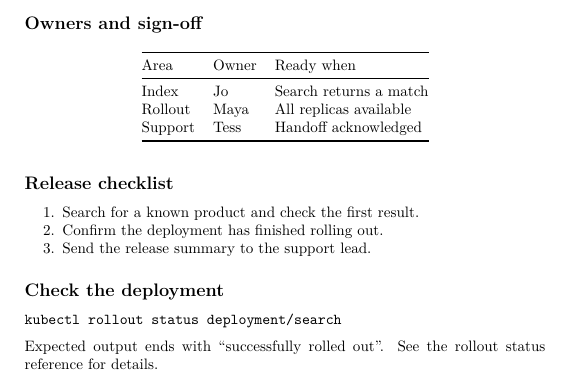
- Read the last table cell. Follow the Support row across from Tess to “Handoff acknowledged.” In our export, all three columns fit and the full phrase was visible. Above it, the Rollout row paired Maya with “All replicas available.”
- Copy the command into a text editor. Select the line under “Check the deployment” and paste it into an empty text file. It should read
kubectl rollout status deployment/searchon one line, including the space beforedeploymentand the slash beforesearch. We extracted the text from the finished PDF and matched it against the source. - Follow the link at the bottom. “Rollout status reference” wraps across two lines in our PDF. Both parts contain a link to the same Kubernetes command reference. A teammate can reach the documentation by clicking either part. Expected link destination
For your own handoff, replace the owners and release notes in the Markdown, then rerun the same export command. If a longer entry adds a page, check the last table cell and the command again before sending the new PDF.
Reuse your Pandoc Markdown to PDF settings
Suppose your team needs an A4 copy of this handoff at every release. You can save the paper size and engine together in a defaults file. Save these three lines as handoff.yaml beside the sample Markdown:
pdf-engine: tectonic
variables:
  papersize: a4
Run this command from that folder. Giving the A4 copy its own filename lets you open both editions side by side.
pandoc --defaults=handoff.yaml project-handoff.md -o project-handoff-a4.pdf
In our test, the original PDF measured 612 × 792 points (US Letter). The new copy measured 595.28 × 841.89 points (A4) and still fit on one page. Check the page size in your PDF viewer’s document properties. The next time you edit the handoff, rerun the command to apply the same settings. Pandoc defaults files
Start a heading on a new page
For a handoff you plan to print, you might want the deployment instructions on a sheet of their own. With the LaTeX workflow used here, put \newpage on a line by itself just before the heading. Leave a blank line on either side. Here is the change we made in a copy of the sample:
3. Send the release summary to the support lead.

\newpage

## Check the deployment
We exported that copy with Tectonic and got two pages. The release checklist ended on page one. Page two began with “Check the deployment,” followed immediately by the command to copy. This is a raw LaTeX instruction for this export workflow. If you also publish the source as HTML, check pagination separately in the print layout.
Keep reading


