
How to Paste Markdown into Google Docs Without Losing Formatting
Learn how to paste Markdown into Google Docs using native paste or rich text. Compare tested headings, tables, code, and common formatting fixes.

To paste Markdown into Google Docs with formatting, use Google's Markdown paste feature or convert the source to rich text before pasting. Ordinary plain-text paste can leave #, **, and table pipes visible. For a formatted clipboard workflow, open Markdown to Text, paste your source, select Rich Text, click Copy Rich Text, and paste normally into a Google document.
The right method depends on what you copied and what you need to keep. A readable table, a real heading in the document outline, and correctly indented code are different checks. This guide compares them using the same sample rather than assuming that a good-looking preview guarantees an identical document.
Tested October 5, 2026
Chrome on macOS, one signed-in Google Docs account, and a synthetic Markdown sample. A Grammarly extension was present; this was not a clean-browser test. We checked the document outline, visible results, and exported DOCX structure. Screenshots retain the test account's Chinese interface; menu names below use English. Fonts and spacing can vary in your editor.
Choose a method before you copy
Start by identifying the clipboard content. Markdown source contains literal syntax, such as ## Plan or [guide](https://example.com/docs). Rich text carries document formatting alongside the words. Copying a rendered answer from an app may supply rich text; copying its source or a code block may supply only characters. The appearance of the source alone does not tell you which clipboard format an app provides.
- Have Markdown source and want to stay in Google Docs? Try its native Markdown paste feature first. Check the result with a small sample, especially code.
- Want formatted headings, links, and tables without changing the Docs Markdown preference? Use a Markdown to rich text converter and paste its formatted clipboard output.
- Need unstyled words for a note or form? Use Markdown to plain text. It removes presentation markers, but cannot carry heading styles or a visible table grid.
- Need a Word file as well? DOCX import is another route, but inspect its layout. Our tested exports had a table-width problem in Google Docs.
If an AI answer wraps the whole document in an outer code fence labelled markdown, copy the content inside that wrapper. Keep genuine inner fences around programming examples. Removing every backtick would also change code that belongs in the document.
How to paste Markdown into Google Docs with its native feature
Google's official Markdown instructions describe enabling Markdown in preferences and using Paste from Markdown on copied source. Menu wording depends on your interface language.
- Open the Google document where the content should go.
- Open Tools → Preferences, enable Markdown, and confirm.
- Copy the Markdown source, including the heading and table syntax.
- Right-click at the insertion point and choose Paste from Markdown. Check the converted result before pasting a long document.
A limitation in our test: both the right-click command and Edit → Paste from Markdown prompted us to install a Chrome extension. We did not install it, so we did not complete conversion through those commands. Separately, with Markdown enabled, ordinary Cmd+V on our plain-text source produced formatted content in this account. Treat that keyboard result as an observation, not a shortcut guaranteed for every browser or account.
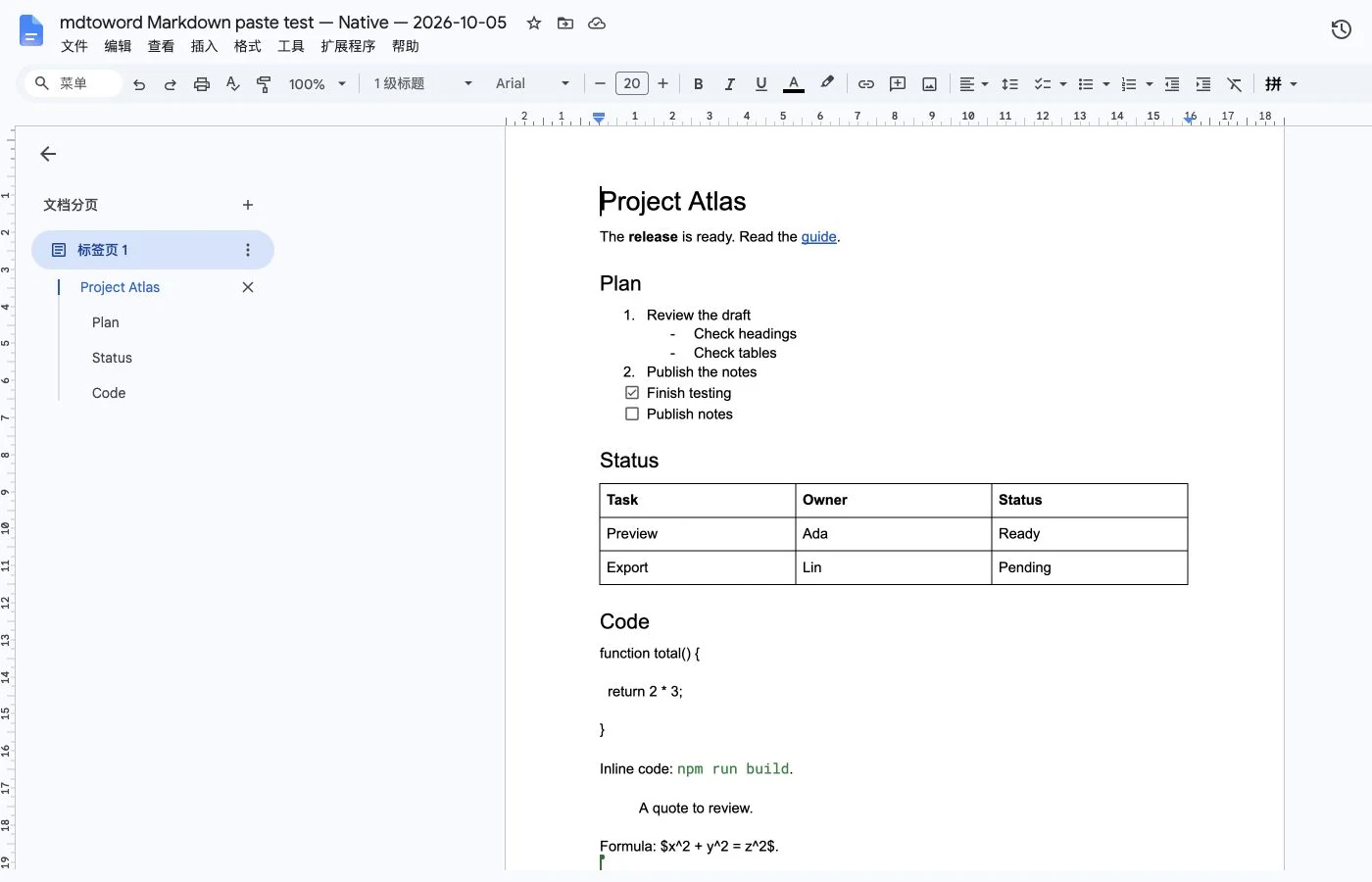
The sample's four headings became actual heading styles, and the table had three columns and three rows, including its header. The link remained clickable. The code characters and tested two-space indentation survived, but the fenced block lost its monospaced appearance and gained blank lines between paragraphs. Inline code behaved differently: it retained a monospaced font.
After testing, we restored the original disabled Markdown preference. Changing this setting is not necessary for the rich-text method below.
Paste Markdown into Google Docs as rich text
This method converts Markdown to formatted clipboard content first. It is useful when your source is a README, a copied AI response, or a draft with headings and tables, and you want to inspect the output before inserting it into a document.
- Open the free Markdown to Text converter.
- Paste the source into the left editor, or upload your
.mdfile. - Select Rich Text and review the output. Use Copy Rich Text, not Copy Plain Text.
- Place the cursor in a Google document and paste normally: Cmd+V on macOS or Ctrl+V on Windows. We tested the macOS shortcut.
- Inspect headings in the document outline, click a link, and check table cells and code indentation.
Avoid the destination's Paste without formatting command when you want heading styles and tables. That action asks the editor to discard formatting, even if the clipboard contains a rich version.
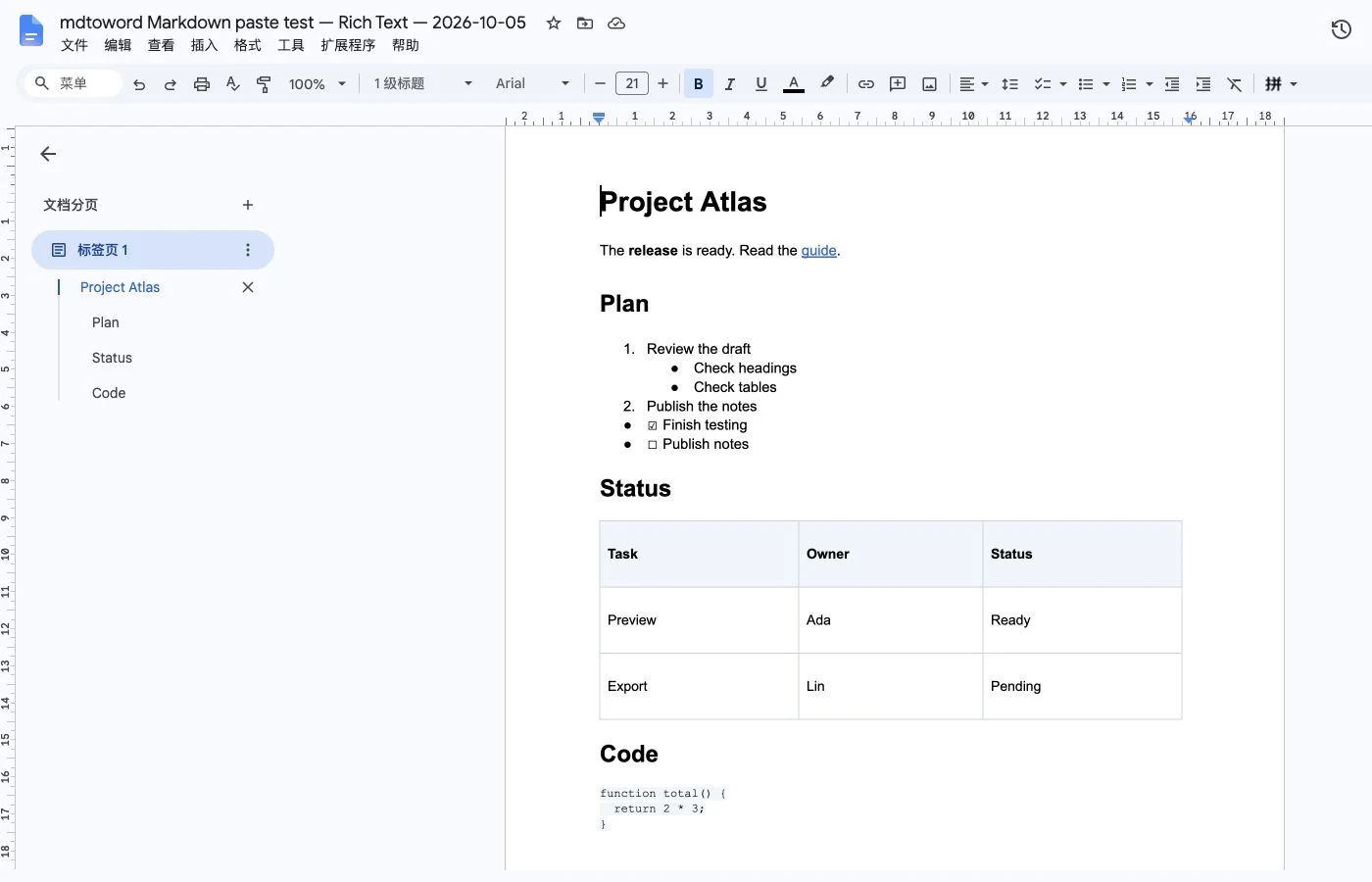
Our tool supplies HTML clipboard content together with a clean text alternative. Google Docs used the formatted content in this test: four real headings, nested list levels, a clickable link, and a readable table. The fenced code stayed monospaced, with its line breaks and tested indentation intact. Its size differed from the converter preview.
Task items became bullets containing ☑ and ☐ text glyphs. We checked their appearance, not interactive checkbox behavior. If your workflow needs clickable tasks, verify or recreate them as a native Docs checklist.
The rich mode also downloads RTF, a formatted document format. This guide tests clipboard paste, not RTF import into Google Docs. A TXT download is deliberately unformatted; use it when clean characters matter more than document styles.
What each method actually preserved
We used one source for all methods, including a baseline ordinary paste with Markdown disabled. That baseline retained Markdown symbols and produced no semantic headings or table. For the formatted methods, we also exported the resulting Google documents as DOCX and inspected heading styles, list levels, links and table structure. This distinguishes a styled heading from text that merely looks large.
| Sample element | Native keyboard paste* | Copy Rich Text | Our DOCX import |
|---|---|---|---|
| Headings | Four real heading styles | Four real heading styles | Four real heading styles |
| Nested lists | Nested levels retained | Nested levels retained | Nested levels retained |
| Link | Clickable | Clickable | Clickable |
| Three-column table | Readable cells and columns | Readable cells and columns | Cell text retained; columns collapsed |
| Fenced code | Text retained; normal font and extra spacing | Monospaced; tested indentation retained | Monospaced code retained |
| Task marks | Marks visible | Text glyphs within bullets | Check marks absent; task text retained |
*Native results refer to the completed keyboard-paste test with Markdown enabled. The explicit Paste from Markdown menu command was blocked by an extension prompt. DOCX results refer to our own exports in Custom and Classic styles, not every converter or Word document.
Try the same Markdown sample
Download the exact test source and repeat the steps in a disposable document. Compare the title in the outline, the table's three columns, and the spaces before return. This sample also includes a quote, inline code and formula source so you can see what your receiving editor does with them.
Show the complete Markdown test sample
# Project Atlas

The **release** is ready. Read the [guide](https://example.com/docs).

## Plan

1. Review the draft
   - Check headings
   - Check tables
2. Publish the notes

- [x] Finish testing
- [ ] Publish notes

## Status

| Task | Owner | Status |
| --- | --- | --- |
| Preview | Ada | Ready |
| Export | Lin | Pending |

## Code

```js
function total() {
  return 2 * 3;
}
```

Inline code: `npm run build`.

> A quote to review.

Formula: $x^2 + y^2 = z^2$.
Should you convert Markdown to DOCX and import it?
If you also need an editable Word file, you can export from MD to Word, then use File → Open → Upload in Google Docs to open that DOCX. For a workflow ending in Word itself, our Markdown file to Word guide covers source cleanup and export checks.
However, DOCX import was not the best route for the table in this Google Docs test. Our exported files retained headings, links and code, but all three table columns became extremely narrow. Words wrapped vertically. We repeated the export with the Classic style after testing Custom, and saw the same problem.
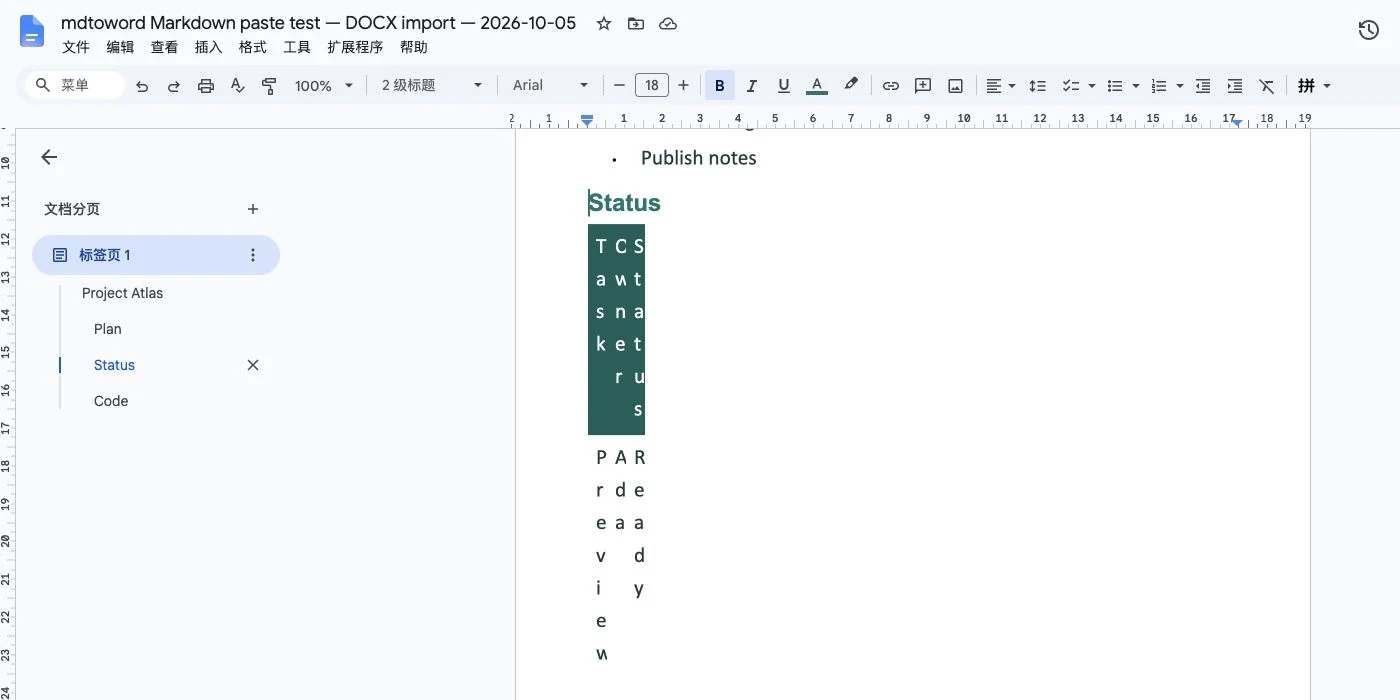
For this sample, rich-text paste produced a more usable table. If you choose DOCX anyway, review column widths and task items before sharing. We have not fixed or fully diagnosed the export issue as part of this guide, so we do not describe that route as lossless.
Fix common Markdown paste problems
Hashes, asterisks or pipes remain visible
You may have pasted source as ordinary text without Markdown conversion. Check the Docs preference and the intended paste command, or convert the source to rich text first. If only one section remains literal, look for an outer code fence around that section. Test a single heading and a short table before retrying the whole document.
Paste from Markdown is missing or asks for an extension
Check Tools → Preferences and whether Markdown is enabled. In our Chrome session, the explicit menu commands still displayed an extension prompt after enabling it. We did not complete those commands or test an extension installation. You can try the rich-text workflow in the same document instead; our test completed it with Markdown disabled. Do not assume an unavailable command means your source is invalid.
The words paste, but headings and tables disappear
Check that you selected Rich Text and clicked Copy Rich Text. Plain mode intentionally removes styles. Also check whether you used paste without formatting. If the converter reports that rich copying is unavailable, its clean-text fallback cannot carry a table grid; retry in a browser that permits formatted clipboard copying or use a compatible file workflow.
Fonts, code spacing or table widths change
The destination interprets clipboard styles. A larger font is usually a presentation difference; missing list levels or flattened table cells are structural differences. Inspect both. For code, compare punctuation, line breaks and indentation with the original. For a narrow imported table, try rich-text paste and compare the same rows before committing to manual layout repairs.
Task boxes, formulas or images behave differently
Visible task marks do not prove interactive checklist support. Our converter keeps formula source as text; it does not promise rendered equations. The receiving Docs session interpreted the simple formula in some test outputs, so that behavior should not be attributed to the converter. Rich output also excludes remote images. Add required images or equations in Docs and verify them separately; this test did not cover diagrams, remote images, mobile browsers or every Markdown extension.
Questions about Markdown files and local conversion
Can I import a .md file directly into Google Docs?
Google documents file import, but its current Markdown editing-mode help distinguishes a Markdown file from a native Google document: an opened .md or .markdown file remains in Markdown mode, indicated by a .md tag. Do not assume that a formatted preview means the file became a native Docs document. This mode was not part of our paste test. If you want content in an existing native document, use one of the paste workflows above.
Does conversion stay on my device?
The Markdown to Text tool processes the document locally in your browser rather than uploading it to a conversion API. Once you paste content or upload a file into Google Docs, it goes into Google's cloud document service. Local conversion describes the conversion step, not the entire workflow.
Which result should I choose for Google Docs: plain text or rich text?
Choose rich text for headings, emphasis, links and tables. Choose plain text when you deliberately want unstyled words. They share a source but produce different outputs. Neither selection guarantees identical fonts or page layout in every receiving app.
Will this preserve every Markdown feature?
No. Our results cover one reproducible sample and one desktop browser/account. For a long document, test a representative section containing your hardest table, nested list and code example. For a fixed printable result instead of editable Docs content, see how to save Markdown as PDF.
Prepare your Markdown for Google DocsPaste a short sample, switch to Rich Text, and copy the formatted output. Review the document outline, table cells and code after pasting.Open Markdown to Text →Keep reading


